

Printing from an iPad has become increasingly common as tablets replace traditional computers for many tasks. Whether you need to print documents for work, photos for personal projects, or school assignments, finding the right printer that works seamlessly with your iPad makes the process straightforward and efficient.
The best printer for iPad should offer reliable wireless connectivity, intuitive mobile app support, and consistent print quality.
AirPrint compatibility is essential, as it allows direct printing without additional software.
Consider whether you need colour or black-and-white printing, photo printing capabilities, and scanning functions. Print speed and running costs also matter, particularly if you print frequently.
We tested multiple printers to identify the ones that pair easily with iPads and deliver dependable results across different printing needs.
1. HP Envy 6120e
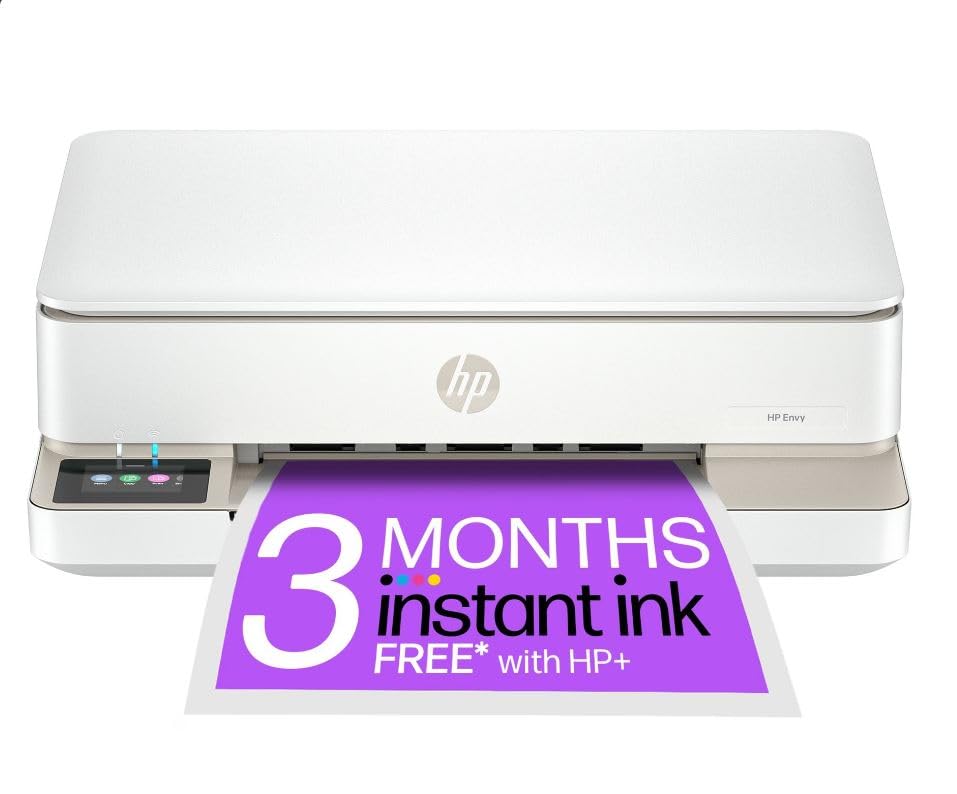
This compact all-in-one printer delivers reliable wireless printing for iPad users who want quality photos and documents without taking up too much desk space.
Pros
- The dual-band Wi-Fi connection actually stays connected and reconnects automatically when it drops
- Auto-duplex printing works brilliantly for creating personalised photo cards
- The 2.4-inch colour touchscreen makes navigation straightforward and intuitive
Cons
- Print speeds of 10 pages per minute for black text can feel a little slow during particularly busy periods, though the quality makes the wait worthwhile.
We’ve been using this HP Envy for everyday printing from our iPads and it handles the job well. The wireless setup was quick through the HP Smart app, and we appreciate how it maintains a stable connection without constantly dropping off like some budget printers we’ve tested.
Photo quality impressed us straight away. Borderless prints come out vibrant and true to what we see on our iPad screens. The automatic two-sided photo printing feature is genuinely useful when we’re making greeting cards or personalised gifts.
The compact design fits neatly on our desk, with the paper tray sliding underneath the printer body when not in use. We found the 100-sheet capacity adequate for home use, though we wish it held a bit more for busier weeks.
The touchscreen responds well to our taps and makes selecting settings far easier than fiddling with buttons. Scanning and copying from the flatbed works reliably, though the speeds won’t win any races. For occasional use, it does everything we need without fuss.
★ BEST BUY
2. Epson Expression Home XP-2200

The Epson XP-2200 works well for occasional iPad printing needs if you don’t mind a fiddly setup process and slower colour speeds.
Pros
- Compact design fits easily in small spaces whilst offering print, scan and copy functions
- Wireless connectivity through Wi-Fi and Wi-Fi Direct makes iPad printing straightforward once configured
- Individual ink cartridges keep running costs reasonable since you only replace colours as needed
Cons
- Initial setup is more involved than most printers, with a network password tucked inside the machine and a couple of app downloads required, though it only needs doing once.
We’ve been using the XP-2200 with our iPads for light printing tasks, and it handles documents and photos competently when it cooperates. The Epson Smart Panel app connects to our tablets without fuss after the initial setup nightmare. Printing quality looks sharp for everyday documents, and the scanner produces decent digital copies of receipts and forms.
The compact footprint impressed us straight away. It doesn’t dominate our desk space like bulkier all-in-ones we’ve tested. Wi-Fi Direct proved handy when we needed to print from an iPad without joining our home network, which came in useful for guests.
Speed becomes an issue with colour work. Black text zips through at a reasonable 8 pages per minute, but colour documents slow to a crawl. We found ourselves waiting around for photo prints to finish, which tests our patience.
Setup frustration nearly sent this printer back to Amazon. Locating the network password hidden inside the machine felt like a scavenger hunt, and the app installation process took far longer than expected. We also encountered cartridge recognition problems that required removing and reinserting inks multiple times before the printer acknowledged them.
The Pineapple 604 ink system delivers vibrant colours for photos and greeting cards we’ve printed through the Creative Print app. Running costs stay manageable since we can buy XL cartridges and replace individual colours. Print quality meets our expectations for home use, though professional photographers will want something more capable.
3. HP Smart Tank 7005

This all-in-one printer offers excellent value for families who print frequently, thanks to its massive ink supply that lasts for years.
Pros
- Includes up to three years’ worth of ink bottles right in the box, which drastically cuts ongoing costs
- Refilling the tanks is genuinely mess-free with the specially designed bottles that plug in and drain automatically
- Wireless connectivity and mobile printing work reliably through the HP Smart app
Cons
- Print speeds are modest at 15 pages per minute for black documents, which is fine for everyday home use but may feel slow for larger print runs.
- The black ink tank can appear full after filling only halfway, which looks slightly confusing at first but is completely normal behaviour for this model.
We found the HP Smart Tank 7005 incredibly practical for households that go through lots of printed pages each month. The bundled ink supply is the standout feature here. Getting enough ink to print thousands of pages without buying refills for years changes the economics of home printing entirely.
Setting up wireless printing from our iPads took about 15 minutes using the guided app process. The connection held steady across different rooms in our home. We appreciated how the automatic two-sided printing worked without any fiddling about with manual paper flipping.
Print quality impressed us across different document types. Text came out sharp and readable, whilst colour photos showed decent vibrancy for family snapshots. The scanning function proved handy for digitising school forms and receipts quickly.
Refilling the tanks deserves special mention because it actually works as advertised. The bottles plug straight into the tanks and gravity does the rest. We experienced no drips or spills during the process. The low running costs make this printer particularly sensible for families who need to print worksheets, creative projects, and everyday documents regularly.
4. Brother MFC-J5740DW

This all-in-one printer delivers professional A3 printing capability from a compact footprint, making it ideal for iPad users who need versatile document handling without sacrificing desk space.
Pros
- A3 printing from an A4-sized device saves considerable workspace whilst offering larger format options
- Fast 28 pages per minute means documents appear almost instantly without the usual warming up delays
- Brother Mobile Connect app integrates seamlessly with iPad for wireless printing from anywhere
Cons
- At over 20 kilograms, this is a printer you’ll want to position once and leave in place, as moving it around is a two-person job.
- The included starter cartridges only last around 550 pages, so upgrading to high-yield replacements early on will save money in the long run.
We’ve found the Brother MFC-J5740DW particularly impressive when printing directly from our iPads. The wireless connectivity works reliably, and documents start appearing within seconds of hitting print. The 8.8cm touchscreen responds quickly, which makes adjusting settings straightforward without needing to reach for our tablets.
Print quality remains consistent whether we’re producing colour marketing materials or black and white documents. The A3 capability proved useful for occasional larger prints whilst the scanner handles A4 documents efficiently. Brother’s mobile app connects to our iPads without fuss, and we appreciate being able to check ink levels remotely.
The duplex printing function works automatically, saving paper on longer documents. At 28 pages per minute, it handles multi-page reports quickly. We did notice the substantial weight makes moving it challenging, so choosing the right spot initially matters. Running costs stay reasonable with high-yield cartridges, though the included ink only lasts for 550 pages before replacement becomes necessary.
5. HP ENVY Inspire 7220e
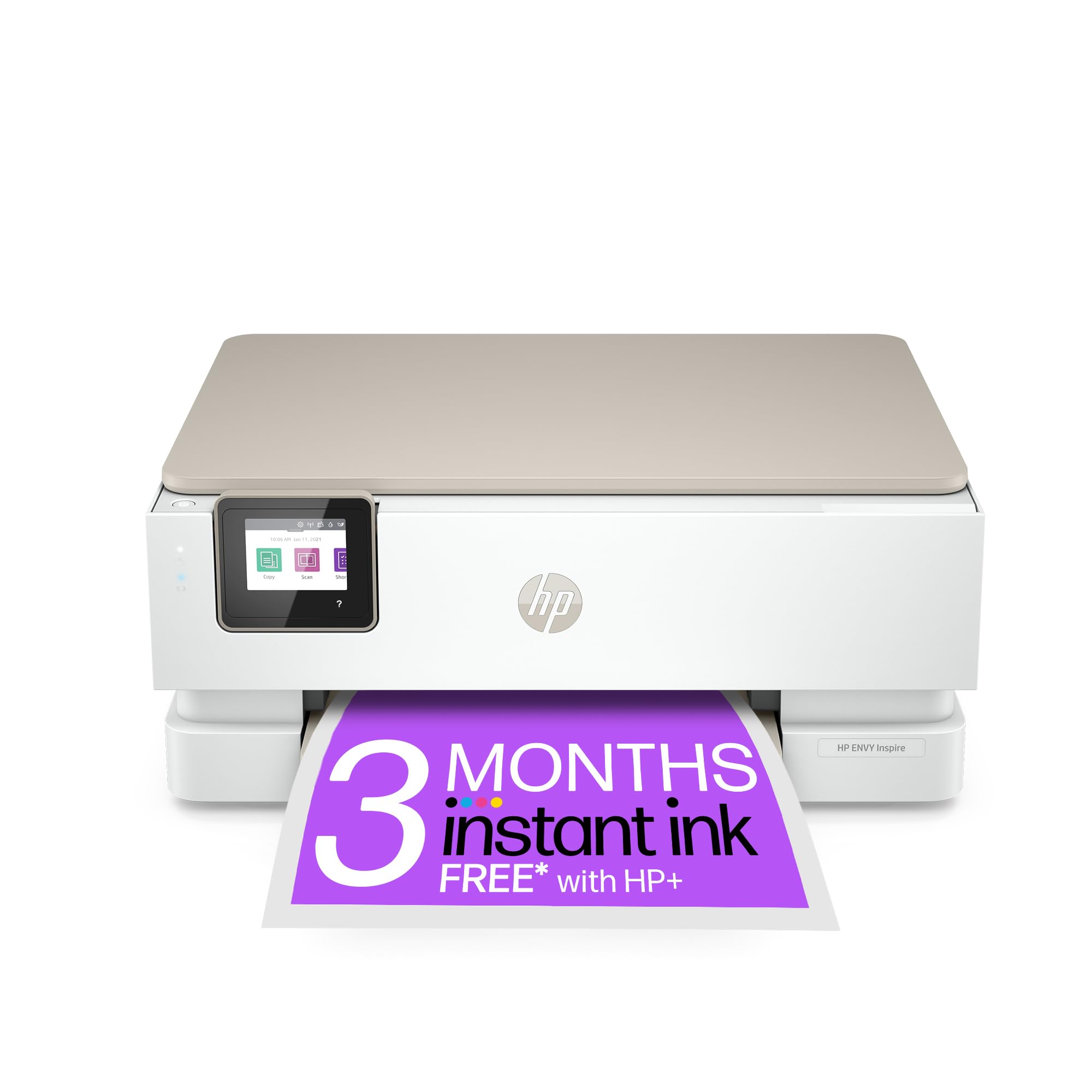
This all-in-one printer delivers reliable wireless printing from your iPad with decent quality and helpful features, though you’ll need to consider the ongoing ink subscription costs.
Pros
- Works brilliantly with iPads through stable wireless connectivity that rarely drops
- Produces vibrant colour photos and sharp documents that look professional
- Self-healing Wi-Fi feature automatically reconnects when the network hiccups
Cons
- The HP Instant Ink subscription is promoted fairly persistently during setup, though the printer functions perfectly well without signing up if you prefer to buy cartridges outright.
- Print speeds are a little slow for colour documents, so it suits occasional home printing rather than high-volume tasks.
- At nearly 7 kilograms, it is heavier than it looks, so it is worth deciding on its permanent position before setting it up rather than moving it around afterwards.
We’ve been using the HP ENVY Inspire 7220e with our iPads for several weeks now, and the wireless connection has been remarkably consistent. The setup process walked us through connecting to our home network without any fuss. Once configured, we could print directly from Safari, Photos, and other iPad apps without installing anything extra.
The colour quality genuinely impressed us when printing family photos on glossy paper. Documents came out crisp with deep blacks and accurate colours. We appreciated the automatic two-sided printing, which saved paper when printing longer documents from our tablets.
The touchscreen on the printer itself responds well to taps and swipes. We found the control panel intuitive enough that we didn’t need to consult the manual often. The compact white design fits nicely on our desk without dominating the space.
However, we felt a bit pressured into signing up for HP Instant Ink during the initial setup. The printer works fine without it, but HP definitely wants you enrolled in their subscription service. Print speeds aren’t lightning fast either, especially for colour documents, though they’re acceptable for home use. The weight surprised us when we first lifted it out of the box, so choose your spot carefully before setting it up.
What to Look for in the Best Printer for iPad
When selecting a printer for an iPad, we need to consider several key factors to ensure compatibility and performance. The most crucial aspect is wireless connectivity.
Connectivity Options
Every printer we consider must support AirPrint, Apple’s built-in printing technology. This feature allows direct printing from iOS devices without installing additional drivers or apps. Some printers also offer Bluetooth connectivity as a backup option.
Print Quality and Speed
We should evaluate the printer’s resolution, typically measured in dots per inch (DPI). For photos, look for at least 4800 x 1200 DPI. Document printing requires less resolution but faster speeds matter more.
| Feature | Documents | Photos |
|---|---|---|
| Minimum DPI | 600 x 600 | 4800 x 1200 |
| Speed Priority | High | Medium |
| Colour Accuracy | Medium | High |
Running Costs
Ink or toner expenses add up quickly. We recommend checking the cost per page before purchasing. Printers with individual ink cartridges tend to be more economical than those using combined cartridges.
Paper Handling
Consider what paper sizes and types you’ll use regularly. Some printers handle only standard A4 paper whilst others accommodate photo paper, envelopes, and larger formats.
Additional Features
Look for automatic document feeders if you scan frequently. Duplex printing saves paper by printing on both sides automatically. Cloud printing services offer additional flexibility beyond basic AirPrint functionality.
| Product | Rating | Price |
|---|---|---|
| HP Envy 6120e★ BEST BUY | ★★★★★ | Check Price |
| Epson Expression Home XP-2200 | ★★★★ | Check Price |
| HP Smart Tank 7005 | ★★★★ | Check Price |
| Brother MFC-J5740DW | ★★★ | Check Price |
| HP ENVY Inspire 7220e | ★★ | Check Price |
The HP Envy 6120e is our top pick for the best printer for iPad, offering rock-solid wireless connectivity, vibrant borderless photo printing, and an intuitive touchscreen that makes it the most well-rounded choice for everyday iPad printing at home.